

Operation
Guide
Firmware V1.00 for the M-VAVE FM-1 · the SHRUB editor · the SHRUB VST3
Firmware V1.00 for the M-VAVE FM-1 · the SHRUB editor · the SHRUB VST3
A stripped-down version of Serum for the M-VAVE FM-1.
Firmware for the FM-1, an editor in your browser, and a VST3 for macOS, Windows and Linux.
Firmware V1.00 · Guide version 1.0 · November 2026
Get it, play it, install it: shrub.audio
Made by Steve Duda, with a lot of help from the people who tested it early and told us what was broken. Thank you, all of you.
Questions, bugs, ideas, love letters: steve@xferrecords.com, or the Feedback button in the editor (it fills in the details we need).
SHRUB is copyright 2026 Xfer Inc. All rights reserved.
SHRUB is free. It isn't made, sold or supported by M-VAVE, and installing it is at your own risk (the installer only writes the part of the FM-1 an update is meant to, and you can always go back to M-VAVE's firmware). Serum is a trademark of Xfer Records. M-VAVE and FM-1 are the trademarks of their owners. VST is a trademark of Steinberg Media Technologies GmbH.
This guide is set in Lato and Raleway (SIL Open Font License). SHRUB's own screens are set in Barlow Semi Condensed (SIL Open Font License).
SHRUB turns the M-VAVE FM-1 into a little wavetable synth with a lot of Serum inside it: real Serum wavetables and warps, Serum's filters, envelopes and LFOs, a 16-slot mod matrix, the Serum 1 effects rack, an arp, a motion sequencer, and 100 presets to start you off.
It's free, it's made because we love this stuff, and it should sound good the moment you turn it on. This guide is here for when you want to know what a knob does, find the trick you forgot, or get your Serum presets onto the box.
Coming from Serum? You already know how most of this works. Skim the SHRUB vs Serum chapter, especially the bit about the filter, and you're set.
Every page, every knob, and all the little moves that aren't printed on the panel.
SHRUB installs from a web page, over the same USB cable you use for MIDI. No drivers, no apps. You need Chrome or Edge on a computer (Safari and Firefox don't have the Web MIDI it uses).
That's it. It restarts into SHRUB, shows the splash and lands on the HOME page.
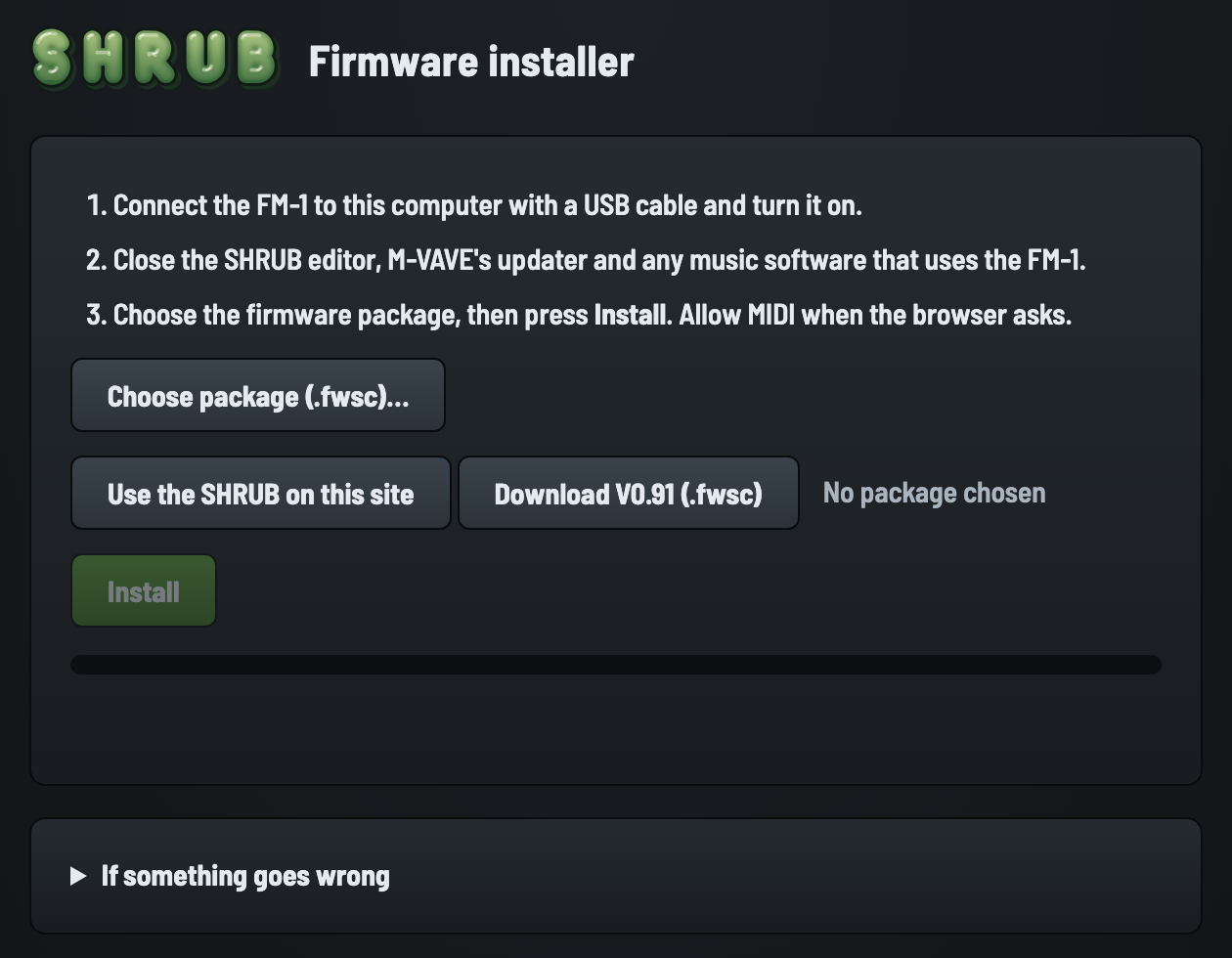
Updating to a newer SHRUB later is the same thing again. Your user presets and wavetables stay put.
Any time you like. Get the official firmware package from M-VAVE and run their updater as you normally would. The FM-1's boot code is never touched by SHRUB's installer, so the way back always works.
Seven endless knobs, one volume knob, fourteen buttons, 27 keys and a little screen. Here's what each of them does in SHRUB.
| Control | What it does |
|---|---|
| MASTER | Volume. The little caret on the meter in the top corner of every page shows where it is. |
| PRESETS | Browse presets, from any page. The name shows straight away and the sound loads once you stop turning (so you can spin past twenty presets without loading them all). It always takes you to HOME. |
| SELECT | Turns the pages of the part you're on (the dots in the header show which page). On SAVE it moves the cursor, on SEQ it picks the lane. |
| ALGORITHM | The part's "type" knob: the wavetable on an oscillator, the filter type, an LFO's mode, an effect's mode, the arp's pattern. On HOME it jumps between preset categories. |
| KNOB 1–4 | The four knobs drawn along the bottom of the screen. They change with every page. |
The knobs speed up when you spin them. Turn slowly for fine moves (1% a click), flick for big ones. Values glide smoothly between clicks, like a real pot.
Each section button opens its section. Press it again to step to the next part of that section. Pills across the top of the screen show that section's parts, with the one you're on lit: always on ENV and LFO, for a moment after each press on EDIT and GLO. You can also hold EDIT, ENV or LFO and turn SELECT to move through the parts either way.
| Button | Opens | Press again for |
|---|---|---|
| EDIT | OSC A | OSC B → SUB → FILTER |
| ENV | ENV 1 | ENV 2 → ENV 3 → MATRIX |
| LFO | LFO 1 | LFO 2 → LFO 3 → LFO 4 → CHAOS → MATRIX |
| FX | FX RACK | each effect that's in the rack, in rack order |
| GLO | VOICING | GLOBAL → MACROS |
| SCL | SCALE | — |
| HOME | the preset's home page | hold it to make the preset a favorite |
| ARP | the arp | turns the arp on and off |
| SEQ | the sequencer's lanes | does what POINT says (delete, clear lane, clear all) |
| SAVE | the save page | saves |
| PLAY | Starts and stops the transport (arp, lanes, click). Its light blinks with the beat. | |
| REC | Records knob moves and notes into the sequencer's lanes. Starts the transport if it's stopped. | |
| OCT− / OCT+ | Shift the keys an octave down or up, three octaves each way. OCT− stays lit while you're below the middle octave, OCT+ while you're above it. | |
The 27 keys play at a fixed velocity of 100 (they don't sense how hard you hit them). Their lights show the notes that are sounding, wherever they come from: your fingers, MIDI, or the arp. On the SCALE page they light up the scale instead. If you play in the dark, KEY LIGHT on the GLOBAL page makes the unlit keys glow faintly.
Every page is laid out the same way:
When you change a stepped value (a wavetable, a filter type, a mode) its name shows up big over the display for a moment.
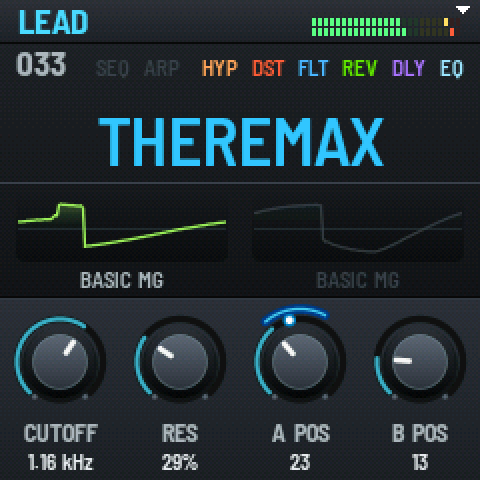
HOME is where SHRUB starts and where PRESETS always brings you. It shows the preset's number and its name big, its category as the title (in the category's colour), both oscillators with their wavetables' names, and the effects that are on.
Its four knobs are the ones you'll reach for most: CUTOFF, RES, and both oscillators' wavetable positions, A POS and B POS. The preset's LEVEL is on the GLOBAL page.
There are 128 preset slots. Slots 1 to 100 hold the factory presets, sorted into seven categories: BASS, LEAD, MISC, PAD, PLUCK, SEQ and SYNTH. Slots 101 to 128 start out as INIT, ready for yours. You can save over a factory slot too; it shows a U in front of its number (U007) once it's yours.
Every preset starts clean: when one loads, SHRUB fades out what's playing (in about 3 ms), clears every effect's tail and the filter, and then brings in the new sound. No thumps, no reverb from the last preset bleeding in.
Hold HOME for a moment (about half a second) to make the preset a favorite. Its title gets a star (PAD *). Hold it again to take it off. Once you have favorites, ALGORITHM on HOME also steps through a FAVORITES group, and PRESETS stays among them while you're in it.
If you've changed the sound and then bump PRESETS, SHRUB doesn't throw your edits away. It says EDITED / TURN AGAIN. Pause a moment and turn again to move on (and lose the edits), or press SAVE to keep them.
SHRUB quietly saves the sound you're working on (and its lanes) a couple of seconds after you stop changing things. Turn it off, turn it on, and you're back where you were. This isn't the same as saving a preset, though: it's just your current sound.
Press SAVE. The save page shows the slot it will save into, the name, and what's in that slot now (REPLACES …).
| Knobs | SLOT1–128 | CURSORor SELECT | LETTERor ALGORITHM | CATEGORY7 of them |
Pick a slot, spell the name (up to 16 characters: letters, numbers, space and -+./#&![]),
pick a category, then press SAVE again. It says SAVED.
Pressing any other section button leaves without saving.
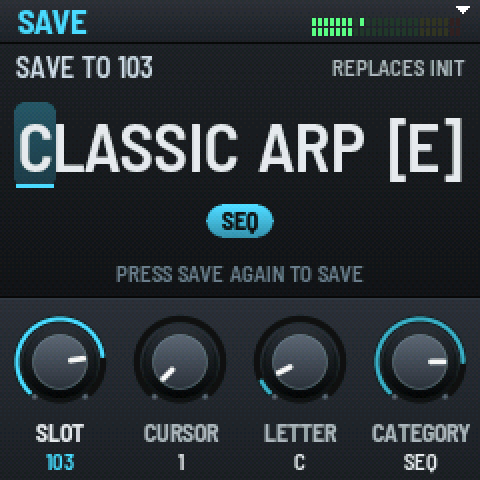
Saving a factory preset you've tweaked? SAVE opens on the first free INIT slot, so you don't overwrite the original by accident. Saving your own preset opens on its own slot.
If the sound has sequencer lanes, the page says SAVE AGAIN: SOUND + LANES, and they're saved with it. The things you might see afterwards:
| Message | What it means |
|---|---|
| SAVED | All good. |
| SAVED, THINNED | The lanes were too detailed to fit, so SHRUB smoothed them a little. |
| SAVED, NO LANES | The lanes didn't fit at all. The sound is saved without them. |
| SAVED, AUX CUT / LFOS CUT / NO LFO 4 | A very big patch had to lose a little to fit its slot (an aux modulation, or an LFO's drawn shape). |
| NOT SAVED: STORAGE FULL | The FM-1's preset memory is full. Free some room in the editor's LIBRARY (or save over an old slot). |
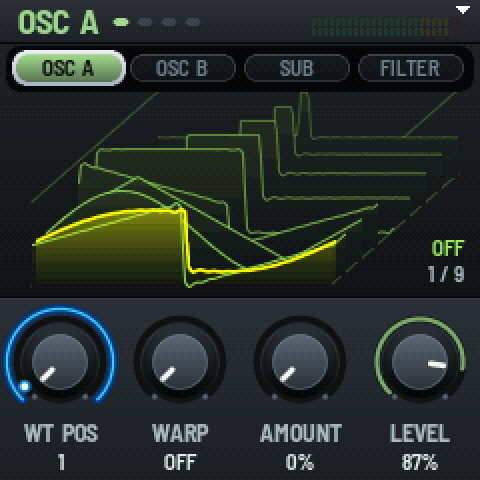
Press EDIT for OSC A, and keep pressing for OSC B, SUB and FILTER. SELECT turns each part's pages.
Two wavetable oscillators, just like Serum's. ALGORITHM picks the wavetable: 64 built in (Serum 2's, a pack from Serum 1, the tables its factory presets use, and a few rule-based ones), the user tables you load from the editor, and ADDITIVE, a table you build from harmonics.
| Page | Knob 1 | Knob 2 | Knob 3 | Knob 4 |
|---|---|---|---|---|
| 1 | WT POSwhich frame plays | WARPthe warp mode | AMOUNThow much warp | LEVEL |
| 2 | VOICESunison, 1–8 | DETUNE | BLENDcenter vs. detuned | WIDTHstereo spread |
| 3 | OCT | SEMI | FINE | RANGEunison detune range |
| 4 | PAN | PHASEwhere notes start; MEM at the top | RANDrandom start phase |
ALGORITHM: the wavetable. With ADDITIVE chosen, three more pages appear for its harmonics (pick a harmonic and set its level and phase; gain, mode, warp, start, end, curve and frames).
The warp modes are Serum's own: OFF, SYNC, SYNC WIN, SYNC 1/2 WIN, BEND+, BEND−, BEND+/−, PWM, ASYM+, ASYM−, ASYM+/−, FLIP, MIRROR, REMAP 8SQR, REMAP 16SQR, REMAP FLAT, REMAP BLACK, QUANTIZE, PD (B), FM (B), FM (NOISE), FM (SUB), AM (B), AM (NOISE), AM (SUB), RM (B), RM (NOISE), RM (SUB). On OSC B, the "(B)" ones read "(A)".
| Page | Knob 1 | Knob 2 | Knob 3 | Knob 4 |
|---|---|---|---|---|
| 1 | SHAPE | OCT−4 to +4 | SUBits level | NOISEits level |
| 2 | COLOR | NOISE | PITCH |
ALGORITHM: the sub's shape: SINE, TRIANGLE, SQUARE, SAW, ROUND RECT or PULSE.
The noise comes in five colours: WHITE, PINK, BROWN, BLUE and CRUSH. PITCH at 50% is the noise as it is. Turn it down and it rumbles, turn it up (to +1 octave) and it hisses brighter.
Serum's filters, 76 types of them: the SVFs (LP, HP, BP, PEAK, NOTCH in 6, 12 and 24 dB), Serum 1's MG LOWs, the ladders (MG LADDER, MG DIRTY, ACID LADDER), FRENCH LP, BANDREJECT, ALLPASSES, REVERB, all 32 combs, flangers and phasers, and the dual-filter combos (L+H, L/B/H and friends).
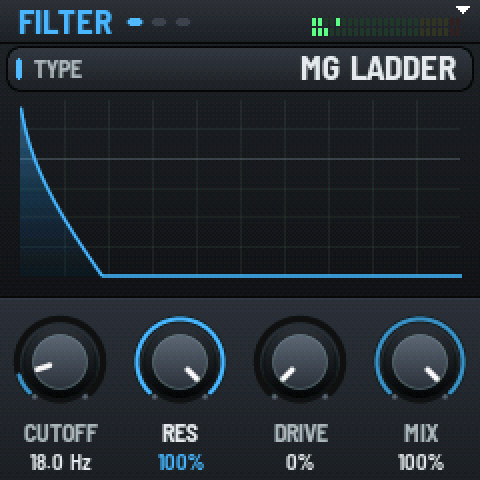
| Page | Knob 1 | Knob 2 | Knob 3 | Knob 4 |
|---|---|---|---|---|
| 1 | CUTOFF | RES | DRIVE | MIXdry vs. filtered |
| 2 | FATthe type's extra knob | KEY TRK | ENV 2ENV 2 into cutoff | STEREOcutoff spread L/R |
| 3 | AOSC A through it | BOSC B | Nnoise | Ssub |
ALGORITHM: the filter type. FAT is whatever the type's second knob is in Serum (Smooth, Pain, Width, Damp, Boeuf, and so on).
One filter for all the voices. SHRUB has a single filter that every note plays through together (a "paraphonic" filter), not one per voice like Serum. One note sounds just like Serum. Chords share the filter and its envelope, and the resonance rings with the loudest note. More about it in The one filter.
Three Serum envelopes. ENV 1 is each note's volume. ENV 2 is wired to the filter's ENV 2 knob and the matrix, ENV 3 to the matrix only.
| Page | Knob 1 | Knob 2 | Knob 3 | Knob 4 |
|---|---|---|---|---|
| 1 | ATTACK | DECAY | SUSTAIN | RELEASE |
| 2 | HOLD | A CURVE | D CURVE | R CURVE |
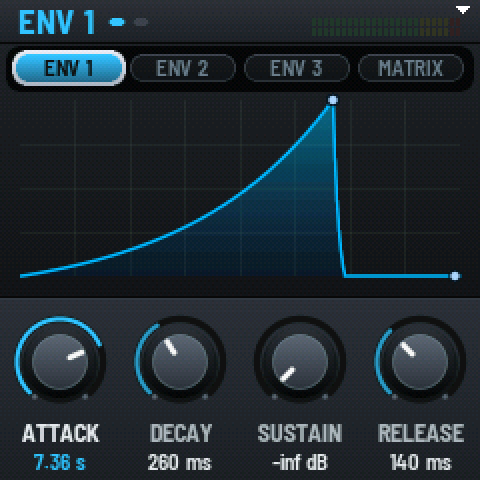
The display draws the envelope with Serum's curves and a dot riding along it for the newest note.
ENV 1 is per note. ENV 2 and ENV 3 are shared by all notes: a new note restarts them from where they are, and they let go when the last key is up. Great for filter sweeps on chords; just know that it's one sweep, not one per note.
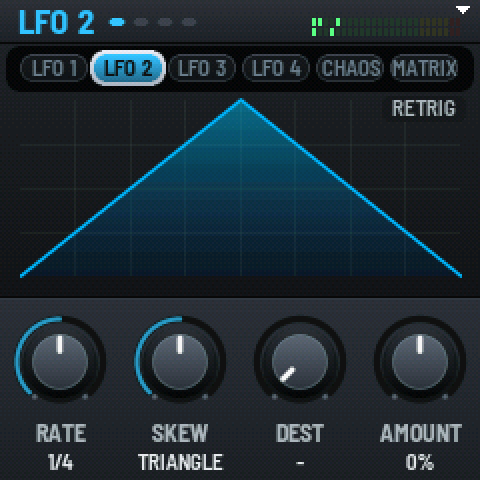
Four LFOs, drawn as Serum draws them, with the playing position moving along the shape. They're shared by all the notes.
| Page | Knob 1 | Knob 2 | Knob 3 | Knob 4 |
|---|---|---|---|---|
| 1 | RATEHz, or a note length with BPM on | SKEWwhere the peak sits | DESTwhere it goes | AMOUNThow much |
| 2 | BPMtempo sync | MODE | PHASE | BIPOLAR |
| 3 | STARTlevel at the start | PEAKlevel at the peak | ENDlevel at the end | RANDOMOFF, S&H, SMOOTH |
| 4 | POINT X | POINT Yan extra point | SMOOTH | DEPTH |
ALGORITHM: the mode: FREE (keeps running), RETRIG (restarts with each note) or ENVELOPE (runs once per note, like an envelope).
DEST and AMOUNT are a shortcut into the matrix: they edit the first matrix slot this LFO feeds. Turn DEST on an LFO that goes nowhere yet and SHRUB grabs a free slot for it. With BPM on, RATE steps through 43 note lengths (straight, dotted and triplet).
The shape is a skewed triangle out of the box: START, PEAK (at SKEW) and END, plus the optional extra POINT. Want a saw? Peak at the start. A ramp up? Peak at the end. Want something wild? Draw it in the editor (up to 17 points with curves) and it plays on the FM-1 too.
Two strange attractors from Serum 1: CHAOS 1 is a Lorenz, CHAOS 2 a Rössler. Each gives the matrix two smooth, never-repeating wiggles, X and Y. Lovely for slow movement that never quite loops.
| Knobs | RATEchaos 1 | BPMchaos 1 sync | RATEchaos 2 | BPMchaos 2 sync |
Sixteen slots, Serum's layout. Each slot takes a source to a destination by an amount. KNOB 1 picks the slot on every page; the other knobs edit it.
The matrix comes last when you press ENV again and again, and last on LFO too, since both are buttons for modulation sources. It's the same matrix from either one.
| Page | Knob 1 | Knob 2 | Knob 3 | Knob 4 |
|---|---|---|---|---|
| 1 | SLOT1–16 | SOURCE | DEST | AMOUNT |
| 2 | SLOT | BIPOLAR | CURVE | |
| 3 | SLOT | AUXa second source scaling it | MODEaux in or inverted | AUX CURVE |
The sources:
LFO 1LFO 2LFO 3LFO 4ENV 1ENV 2ENV 3CHAOS 1XCHAOS 1YCHAOS 2XCHAOS 2YNOTERANDVELOCITYMOD WHEELAFTERTOUCHBENDMACRO 1MACRO 2MACRO 3MACRO 4
And the destinations are pretty much every knob in SHRUB that turns smoothly: pitches, levels, WT POS, warp, unison, the filter, envelope times, LFO rates and shapes, every effect's main knobs, and the macros' targets.
Serum 1's effects, in a rack of seven slots. The FX RACK page lists the slots; press FX again to step through the effects that are in the rack, in order.
| Knobs | SLOT1–7 | MODULEwhat's in it | MOVEup or down the rack | ONon or off |
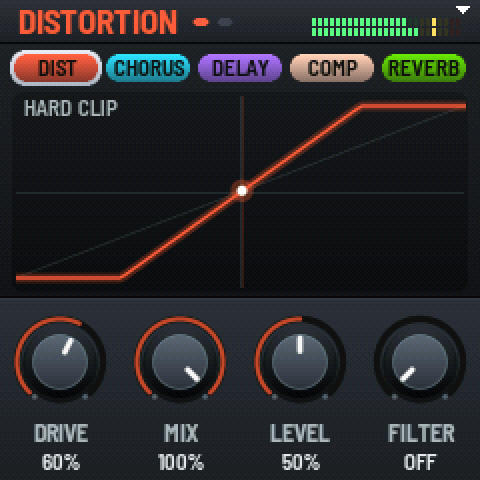
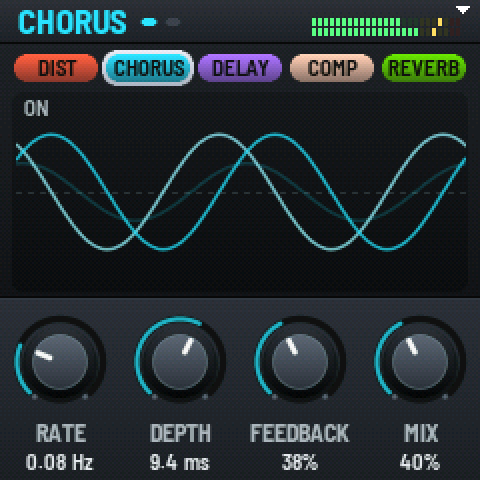
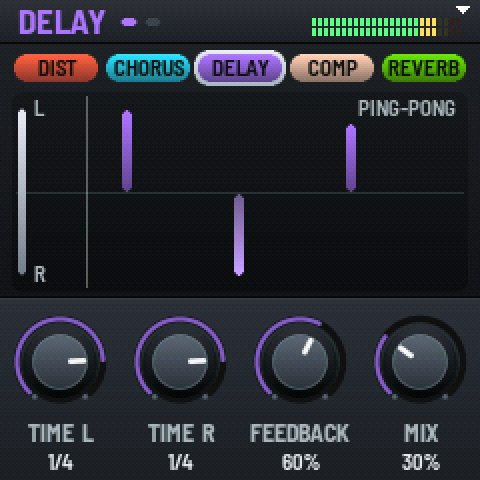
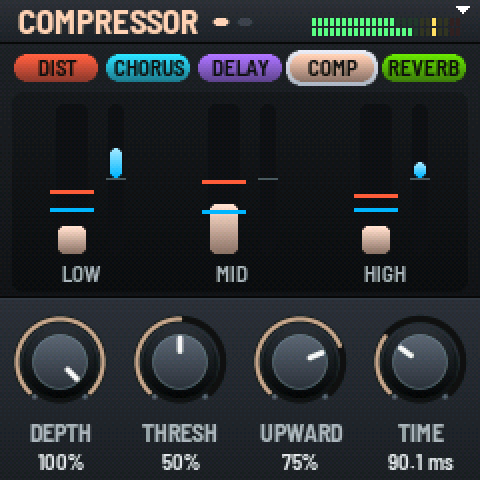
The modules: HYPER/DIM, DISTORTION, FLANGER, PHASER, CHORUS, DELAY, COMPRESSOR, REVERB, EQ and FX FILTER. On an effect's own page the rack runs across the top as chips, lit when they're on.
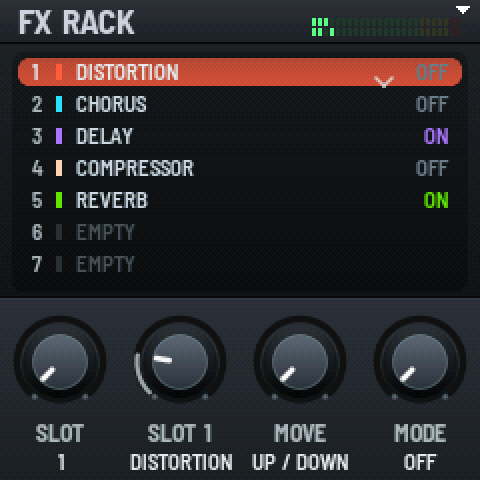
| Effect | Knob 1 | Knob 2 | Knob 3 | Knob 4 |
|---|---|---|---|---|
| HYPER/DIM | UNISON | RATE | DETUNE | MIX |
| page 2 | DIM SIZE | DIM MIX | ||
| DISTORTION | DRIVE | MIX | LEVEL | FILTEROFF, PRE, POST |
| page 2 | FREQ | Q | LP/HP | |
| FLANGER | RATE | DEPTH | FEEDBACK | MIX |
| page 2 | BPM | WIDTH | ||
| PHASER | RATE | FREQ | DEPTH | FEEDBACK |
| page 2 | BPM | WIDTH | POLES | MIX |
| CHORUS | RATE | DEPTH | FEEDBACK | MIX |
| page 2 | DELAY 1 | DELAY 2 | LPF | |
| DELAY | TIME L | TIME R | FEEDBACK | MIX |
| page 2 | BPM | LINK | FREQ | BW |
| COMPRESSOR | DEPTHRATIO in single band | THRESH | UPWARDATTACK in single band | TIMERELEASE in single band |
| page 2 | GAIN | MIX | OTTmultiband on/off | |
| REVERB | SIZE | DECAY | WIDTH | MIX |
| page 2 | LOW CUT | HIGH CUT | SPIN | |
| EQ | FREQ 1 | Q 1 | GAIN 1 | TYPE 1 |
| page 2 | FREQ 2 | Q 2 | GAIN 2 | TYPE 2 |
| FX FILTER | CUTOFF | RES | DRIVE | MIX |
| page 2 | FAT | STEREO |
ALGORITHM on an effect's page is its mode, or just on and off. The EQ's bands are LO SHELF, PEAK or HP, and HI SHELF, PEAK or LP.
| Page | Knob 1 | Knob 2 | Knob 3 | Knob 4 |
|---|---|---|---|---|
| 1 | MONO | LEGATO | GLIDEportamento time | ALWAYSglide even when detached |
| 2 | RAND CUT | RAND TUN | RAND PAN | RAND VOL |
SHRUB plays up to four notes at once, each with up to eight unison voices per oscillator, from a pool of 16 voices. A thick unison patch plays fewer notes; one note always plays. MONO keeps the keys you're holding (let go of the top one and it goes back to the one still held). LEGATO doesn't restart the envelopes on a note played over another, and works in poly too.
Page 2 is per-note random: each new note gets its own little nudge of cutoff, tuning, pan and volume. A touch of RAND TUN and RAND VOL goes a long way toward sounding alive.
SHRUB watches its own CPU as it plays. If a new note wouldn't fit, it takes over a voice that's already sounding (smoothly, no click) rather than glitching. Heavy patches simply play fewer notes.
| Page | Knob 1 | Knob 2 | Knob 3 | Knob 4 |
|---|---|---|---|---|
| 1 | TEMPOBPM, 120 to start | LEVELthe preset's volume | CLICKOFF, ON, REC | ARP+SCALEPRESET, GLOBAL |
| 2 | VOICESvoice control steps, OFF–8 | STEP | PAN | TUNE |
| 3 | MIDI CHOMNI or 1–16 | USB LEVEL | KEY LIGHTOFF, PNO1–5 (keys), ALL1–5 (keys and buttons) | BEND RANGEOFF, 2, 7, 12, 24 |
Page 1 also shows a little system status: the CPU load, USB, the second core, the battery (BATTERY nn%) and the firmware version.
Hold GLOBAL for a moment (about half a second) for the shrub: the splash's tree, a new one each time, its leaves lighting up with the sound. Play the keys, or start a sequence, and watch it. While it's up, the four knobs reshape it as you turn them: knob 1 how many times it branches, knob 2 how tall it grows, knob 3 the lit leaves' colors (six sets), and knob 4 how far its branches spread, from a tight column to a wild tangle. Press any button (except PLAY, REC and the octave buttons) or turn SELECT, PRESETS or ALGORITHM to go back.
Four macro knobs, MACRO 1–4. On their own they do nothing: they're matrix sources, so route them in the matrix (or drag them onto knobs in the editor) and one knob can move a bunch of things at once. The page lists where each one goes. Factory MIDI CCs 16–19 turn them.
| Knobs | KEY-- (off), C to B | SCALE | CHORDOFF, or a chord |
Pick a key and one of Serum 2's 51 scales, and every note snaps into it: the keys, MIDI, the sequencer and the arp. SELECT and ALGORITHM, one above the other, turn the key and the scale too. While you're on this page the keys light up the scale. The scale is saved with the preset.
The scales: Major, Minor and the modes (Dorian, Phrygian, Lydian, Mixolydian, Locrian), the harmonic and melodic minors, pentatonics and blues, a whole world of others (Hirajoshi, Iwato, Klezmer, Persian, Bebop, Whole Tone, Hexatonic…) and Chromatic.
CHORD turns the keyboard into a chord player. The white keys play the scale's steps, with C playing the key's root, and each plays a chord built from the scale's own notes. The black keys pick the chord, from the lowest F#: ROOT (single notes), 3RD, TRIAD, 7TH, 9TH, SUS2, SUS4, 6TH, POWER, OPEN and OCTAVE. While it's on, every key glows, the white keys brighter than the black, and the keys you hold and the chord's black key light up fully. The arp, the sequencer and MIDI out get the chord's notes. CHORD is saved with the preset; with the KEY off the chords are in C.
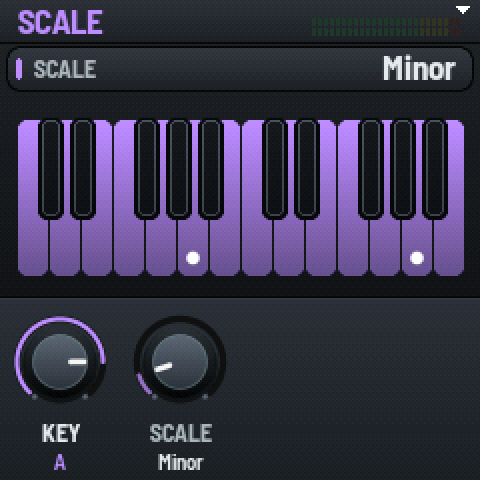
Set KEY to -- to turn the scale off.
Serum 2's algorithmic arp. Press ARP to open it and press ARP again to turn it on or off (its light shows which). Hold some notes and go.
| Page | Knob 1 | Knob 2 | Knob 3 | Knob 4 |
|---|---|---|---|---|
| 1 | RATE | GATE1–200% | OCTAVES1–4 | CHANCE |
| 2 | OFFSET | REPEATS | RETRIG | LATCH |
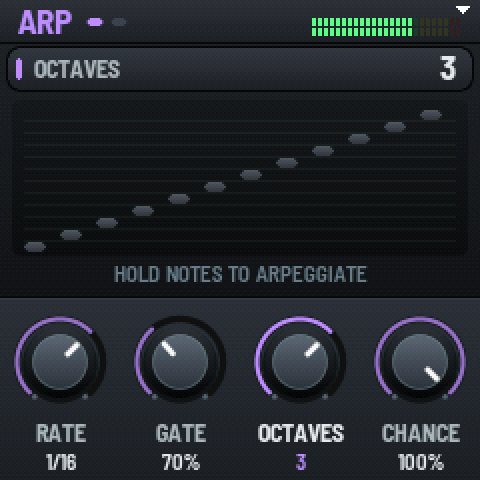
ALGORITHM: the pattern: UP, DOWN, UP/DOWN, DOWN/UP, UP+DOWN, DOWN+UP, THUMB UP, THUMB UD, PINKY UP, PINKY UD, CONVERGE, DIVERGE, CON+DIVERGE, PLAYED, CHORD, RANDOM, RAND NO DUP, RAND DRIFT, RAND ONCE.
Eight lanes of motion. Record a knob moving and it plays back on a loop. Record notes and it plays those too.
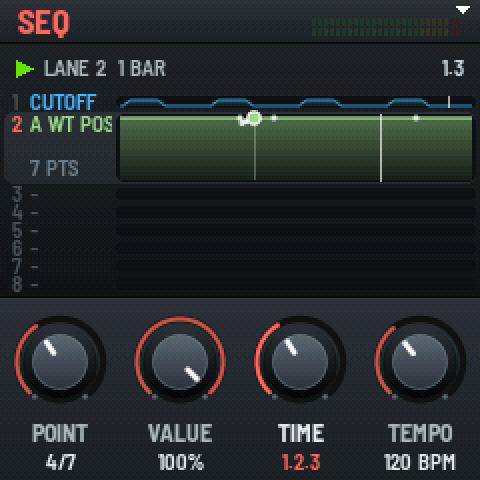
| Knobs | POINTa point, CLEAR LANE or CLEAR ALL | VALUEits value | TIMEits position | TEMPOLENGTH on a note lane |
The SEQ button's light is on whenever there are lanes in the sound. If something's moving and you don't know why, look there.
SHRUB listens on USB MIDI and the TRS MIDI IN jack, both the same way, on the channel set by MIDI CH (OMNI or 1–16). It understands:
SHRUB sends the notes you play on its keys, and MIDI clock (with start and stop) while its own transport runs. USB also carries SHRUB's audio to your computer (see USB LEVEL on the GLOBAL page).
The factory CC map is in Appendix C.
The cheat sheet. Everything you can do by holding, pressing twice, or doing at power-on.
| Do this | Where | And this happens |
|---|---|---|
| Press a section button again | any section | Steps to the section's next part (OSC A → OSC B → SUB → FILTER, and so on). |
| Press FX again | FX | Steps through the effects in the rack, in their order. |
| Hold HOME (½ second) | anywhere | Makes the preset a favorite, or not. |
| Hold GLOBAL (½ second) | anywhere | The shrub, its leaves lit by the sound. KNOB 1–4 shape it; any button or SELECT, PRESETS or ALGORITHM goes back. |
| ALGORITHM | HOME | Jumps to the next or previous category (and FAVORITES). |
| Turn PRESETS twice | an edited sound | The first turn says EDITED / TURN AGAIN. Pause, then turn again to leave it. |
| Press ARP again | ARP | Turns the arp on or off. |
| Press SAVE again | SAVE | Saves. Any other section button leaves without saving. |
| Press SEQ | SEQ | Deletes the point POINT shows, clears the lane, or (pressed twice) clears all. |
| ALGORITHM | SEQ | Halves or doubles the lane's length. |
| DEST on an LFO page | LFO 1–4 | Routes the LFO in the matrix, grabbing a free slot if it needs one. |
| REC | anywhere | Starts recording, and the transport if it's stopped. |
| Any key, button or knob | the splash | Skips the splash. |
| Hold OCT− and OCT+ while turning on | power-on | USB recovery mode (keep holding a second). |
| Hold GLO while turning on | power-on | Turns SHRUB's second processor core off (or back on) for troubleshooting. |
If the FM-1 won't start properly, it can always be rescued. Connect the USB cable, then hold OCT− and OCT+ while you turn it on. It says KEEP HOLDING OCT- AND OCT+ FOR USB RECOVERY; keep holding until it says USB RECOVERY. Now the FM-1's own recovery mode is waiting for the recovery tools (or run the installer again).
Out of the box, these CCs turn these knobs. Change it in the editor (MIDI Learn, or File > Load MIDI Map) and the FM-1 remembers your map.
| CC | Knob |
|---|---|
| 5 | GLIDE |
| 7 | LEVEL (the preset's) |
| 16–19 | MACRO 1–4 |
| 20 / 21 | WT POS, OSC A / B |
| 22 / 23 | warp AMOUNT, A / B |
| 24 / 25 | LEVEL, A / B |
| 26 | SUB level |
| 27 | NOISE level |
| 28 / 29 | DETUNE, A / B |
| 30 | BLEND, A |
| 31 | filter MIX |
| 70 | filter DRIVE |
| 71 | RES |
| 72 | ENV 1 RELEASE |
| 73 | ENV 1 ATTACK |
| 74 | CUTOFF |
| 75 | ENV 1 DECAY |
| 76 / 77 | LFO 1 / LFO 2 RATE |
| 78 | ENV 1 SUSTAIN |
| 79 | FAT |
| 80 | ENV 2 to cutoff |
| CC | Knob |
|---|---|
| 81 / 82 | ENV 2 ATTACK / DECAY |
| 83 / 85 | ENV 2 SUSTAIN / RELEASE |
| 86 / 87 | LFO 3 / LFO 4 RATE |
| 90 | HYPER MIX |
| 91 | REVERB MIX |
| 92 | DISTORTION MIX |
| 93 | CHORUS MIX |
| 94 | DELAY MIX |
| 95 | PHASER MIX |
| 102 | FLANGER MIX |
| 103 | COMPRESSOR MIX |
| 104 | DISTORTION DRIVE |
| 105 | DELAY FEEDBACK |
| 106 / 107 | REVERB SIZE / DECAY |
| 108 / 109 | FX FILTER CUTOFF / RES |
| 110 | FX FILTER MIX |
| 111 / 112 | EQ GAIN 1 / GAIN 2 |
| 113 / 114 | ARP RATE / GATE |
| 120, 123 | all notes off |
| 121 | reset controllers |
| 64 | sustain |
How SHRUB works as a synth, what's different from Serum, and how to get sounds, wavetables and banks in and out.
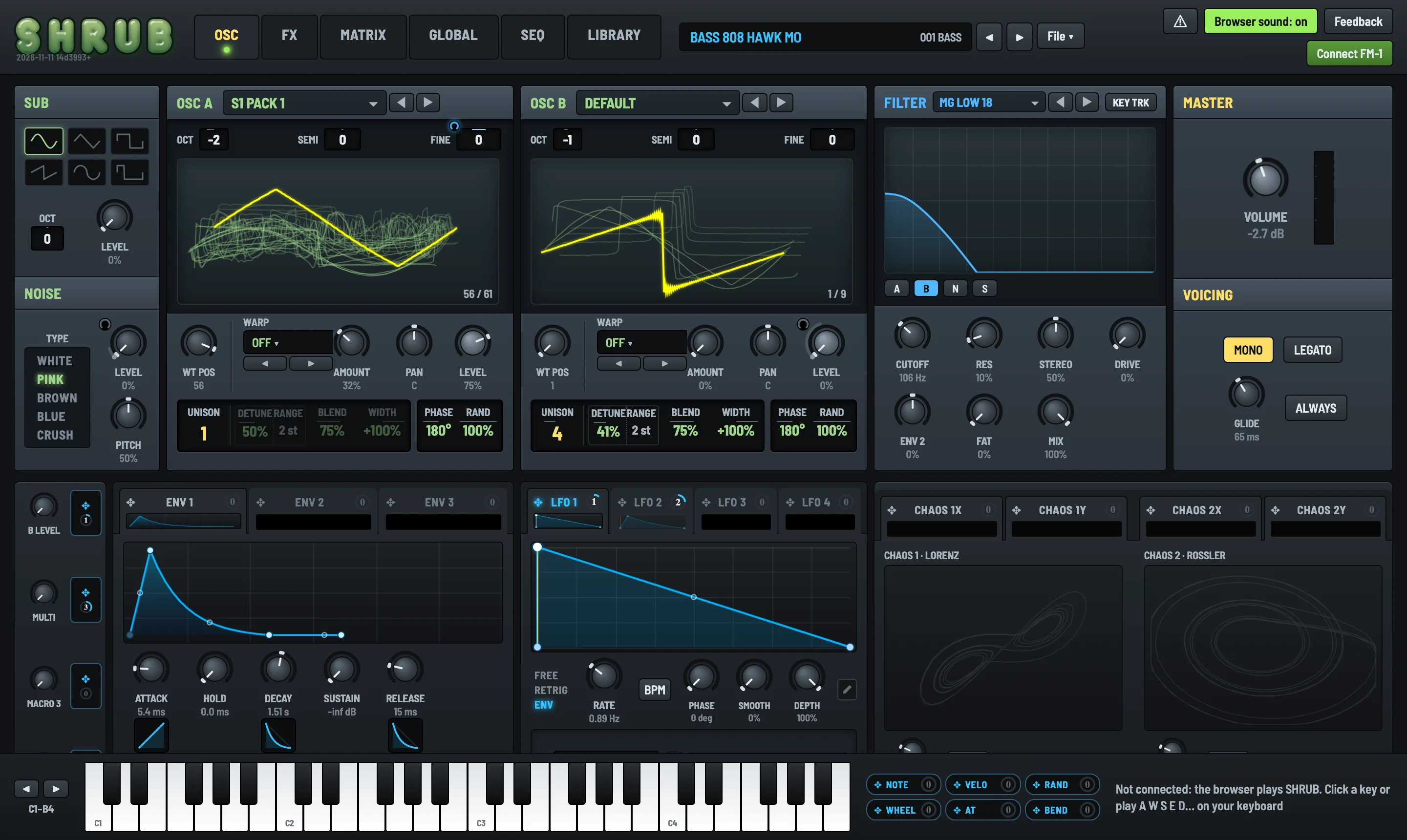
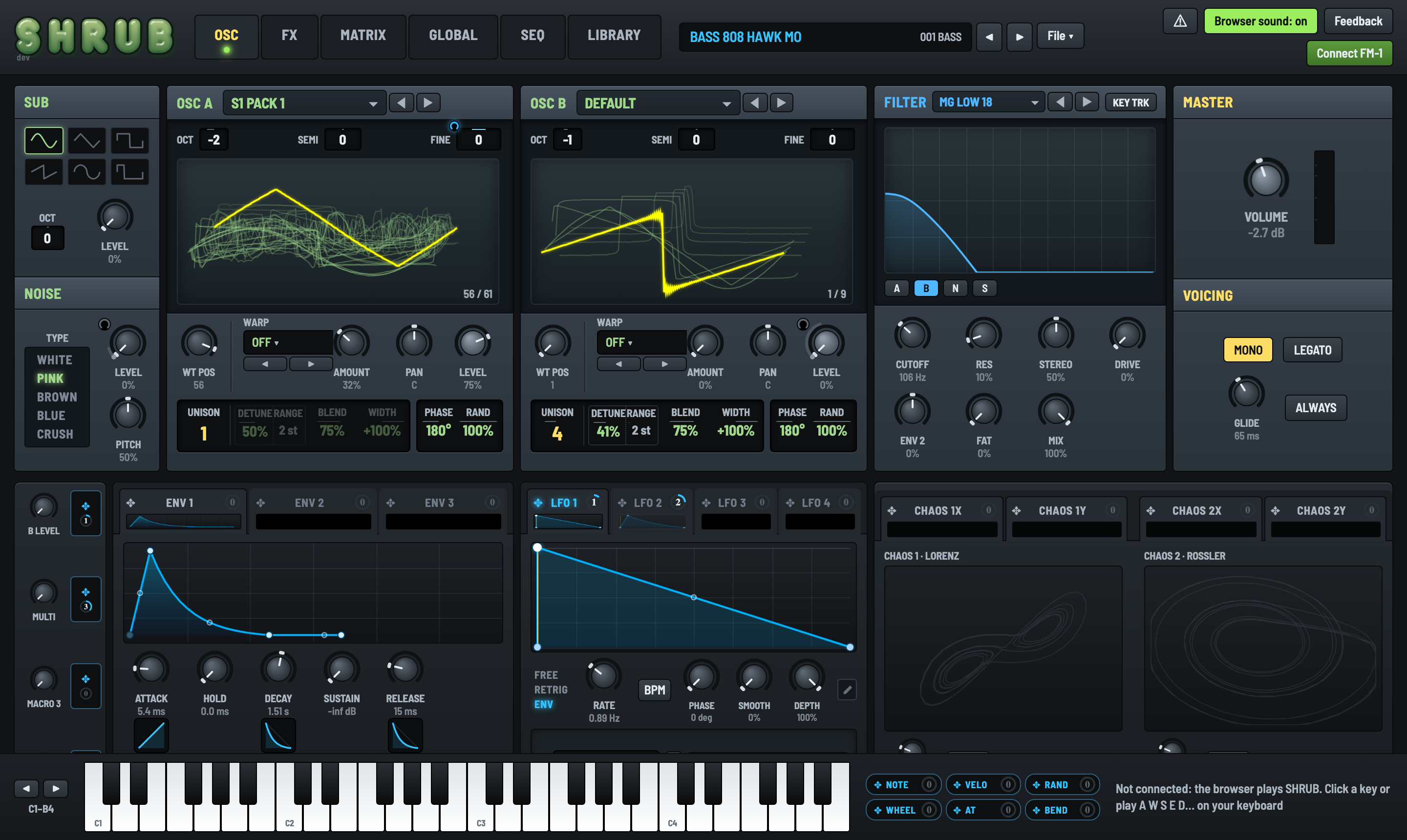
Every knob of SHRUB on one screen, laid out like Serum 1. It plays SHRUB in your browser, edits your FM-1 live when it's plugged in, and lives in your DAW as the VST3.
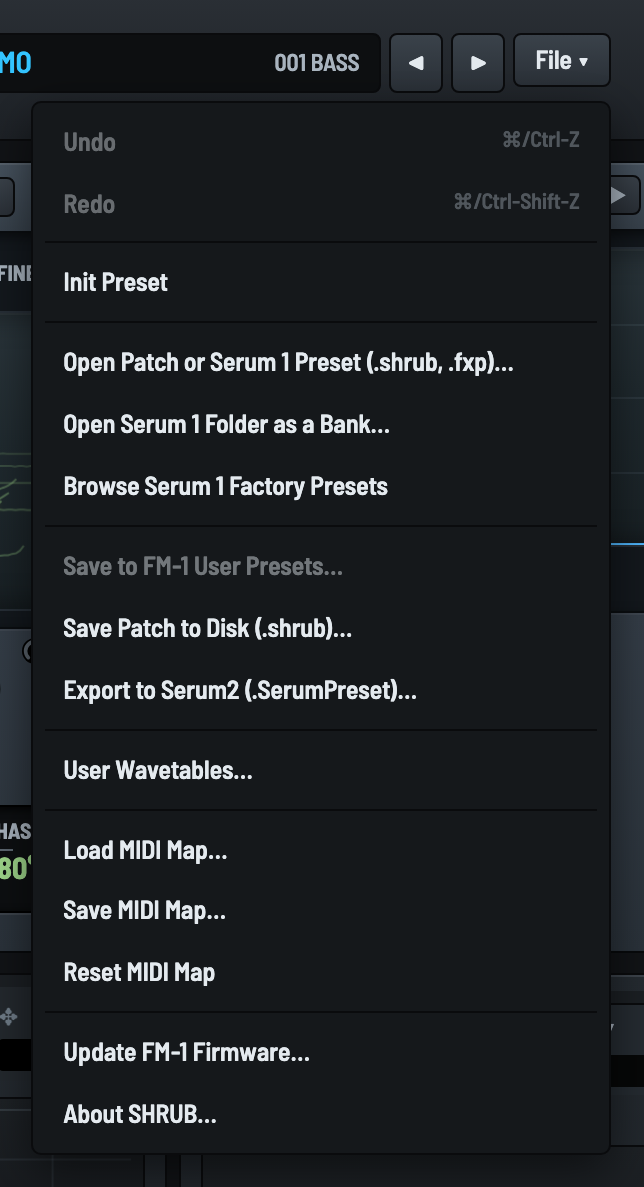
| Undo / Redo | ⌘/Ctrl-Z and ⌘/Ctrl-Shift-Z, 100 steps, the sound and its lanes together. |
| Init Preset | Serum's init: a saw on A, dry, quick attack and release. |
| Open Patch or Serum 1 Preset | A .shrub patch or Serum 1 .fxp presets. Pick several and ◀ ▶ step through them. |
| Open Serum 1 Folder as a Bank | Every .fxp in a folder, to step through. |
| Browse Serum 1 Factory Presets | Serum 1's factory presets, ready to play (no Serum needed). |
| Save to FM-1 User Presets | Into a slot on the FM-1 (when it's connected). |
| Save Patch to Disk | The sound as a .shrub file, lanes and all. |
| Export to Serum2 | The sound as a Serum 2 .SerumPreset. |
| User Wavetables | Import WAVs and send them to the FM-1. |
| MIDI Map | Load, save or reset which CC turns which knob (and in the VST3, save it as the default). |
| Update FM-1 Firmware | Opens the installer. |
| About SHRUB | The splash and the credits. |
Along the bottom: a keyboard to play (your computer keys play it too, with Z and X for octaves) and the performance sources, NOTE, VELO, RAND, WHEEL, AT and BEND, ready to drag onto knobs.
From then on it all goes both ways. Turn a knob in the editor and the FM-1 follows; turn one on the FM-1 and the editor follows. Change presets on either. Browser sound turns off so you're hearing the FM-1 itself, and the editor's keyboard plays it over USB.
Only one program at a time can talk to the FM-1 on Windows. Close the other editor tabs and your DAW's hold on the FM-1's MIDI port if it won't connect. If the editor says the firmware doesn't match, update one or the other so they're the same version.
If you know Serum, this is familiar territory. If you don't, here's the whole trip from a key to your ears.
Two wavetable oscillators (A and B), a sub and noise go into the filter, then ENV 1 shapes each note's volume, then everything goes through the effects rack and out. LFOs, envelopes, chaos, macros and your hands move the knobs along the way, through the matrix.
A wavetable is a stack of single-cycle waves (frames). WT POS slides through them, crossfading from one to the next, which is why moving it sounds like a sweep. The OSC tab draws each table in 3D with the playing frame lit up. Then warp bends the wave on the fly (sync, bend, PWM, FM from the other oscillator or the sub, and so on, all Serum's), and unison stacks up to 8 detuned copies, spread by WIDTH and BLEND.
The ADDITIVE table builds a wavetable from 24 harmonics you set by hand, and the RULE tables (RULE 30, RULE 90 and friends) grow frames from cellular automata. Both are tiny, so they save with the preset.
This is the big one to know. SHRUB has one filter, shared by every note. Serum gives each voice its own filter; on the FM-1, a filter per voice would eat the CPU we'd rather spend on voices and effects. So the notes are mixed together first, then filtered (that's what "paraphonic" means).
Because the filter is shared, SHRUB can afford Serum 2's fancy ones: the ladders, MG DIRTY, FRENCH LP, ALLPASSES, the combs and phasers. Mono basses and leads get the full Serum treatment.
ENV 1 is every note's own volume envelope. ENV 2 and ENV 3 are shared: a new note restarts them from where they are and they release when the last key is up. The four LFOs and the two chaos sources are shared too. In Serum terms: think "global" LFOs.
LFOs in the editor are drawn like Serum's:
Sixteen slots. The easy way in: drag a source onto a knob. Grab an ENV, LFO, CHAOS or macro tab (or NOTE, VELO, RAND, WHEEL, AT or BEND along the bottom) and drop it on any knob that lights up. It takes the next free slot at +25%. A modulated knob shows a blue ring for its range.
The macros (MACRO 1–4) are knobs that only exist to modulate. Drag one onto a few knobs and it moves them all. Its label shows what it's routed to.
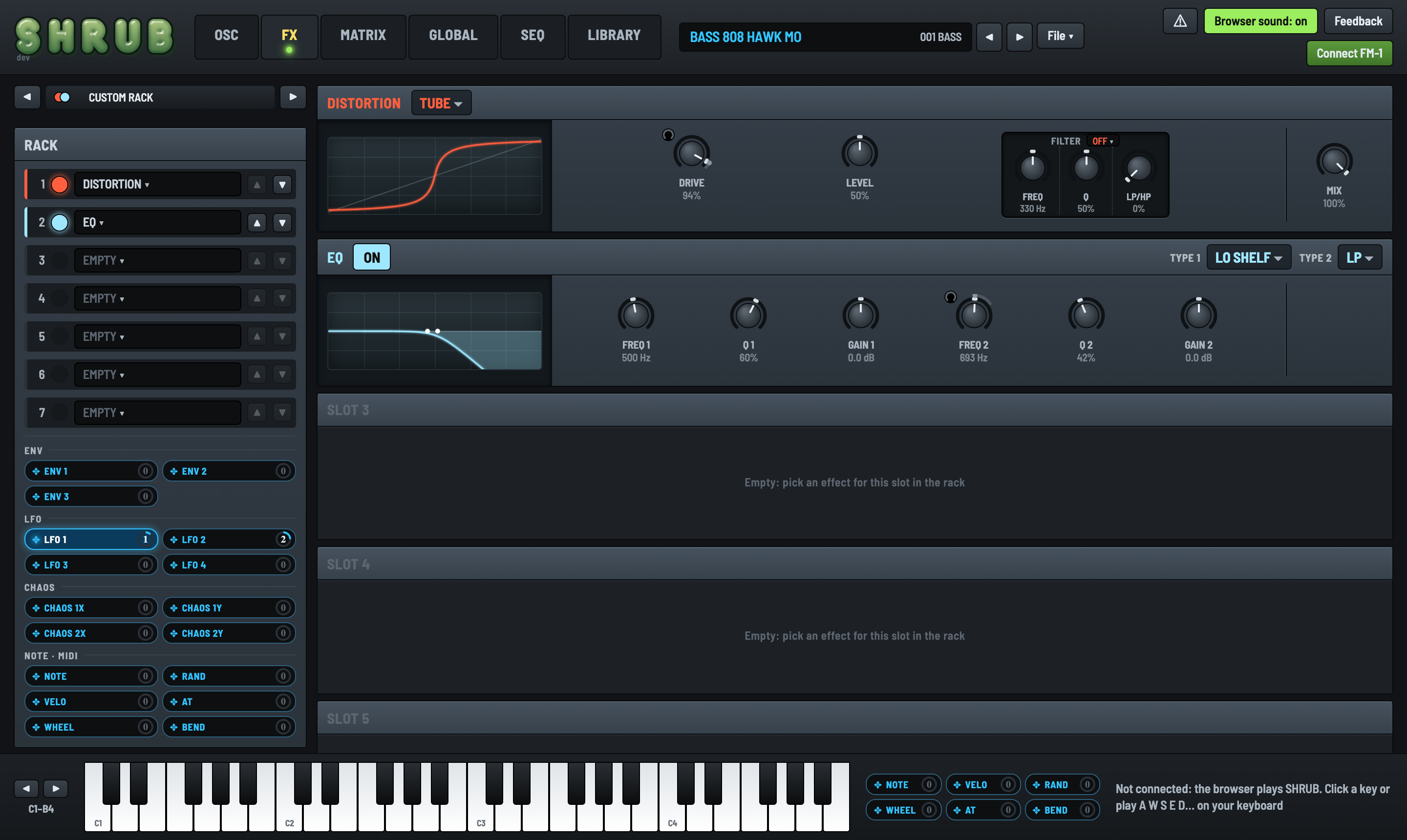
Seven slots, Serum 1's modules: Hyper/Dimension, Distortion, Flanger, Phaser, Chorus, Delay, Compressor (OTT or single band), Reverb (Plate, Hall), EQ and a Filter. Move a module up or down the rack with ▲ and ▼, and grab a starting point from the rack presets (sorted by effect). The DSP is ported straight from Serum's effects, so they sound the way you expect.
Up to four notes, each with up to 8 unison voices per oscillator, from a pool of 16. Mono, legato and glide work like Serum's. GLOBAL has Serum 2's voice control (each new note steps to its own pan and tune) and per-note random (a little random cutoff, tune, pan and volume per note).
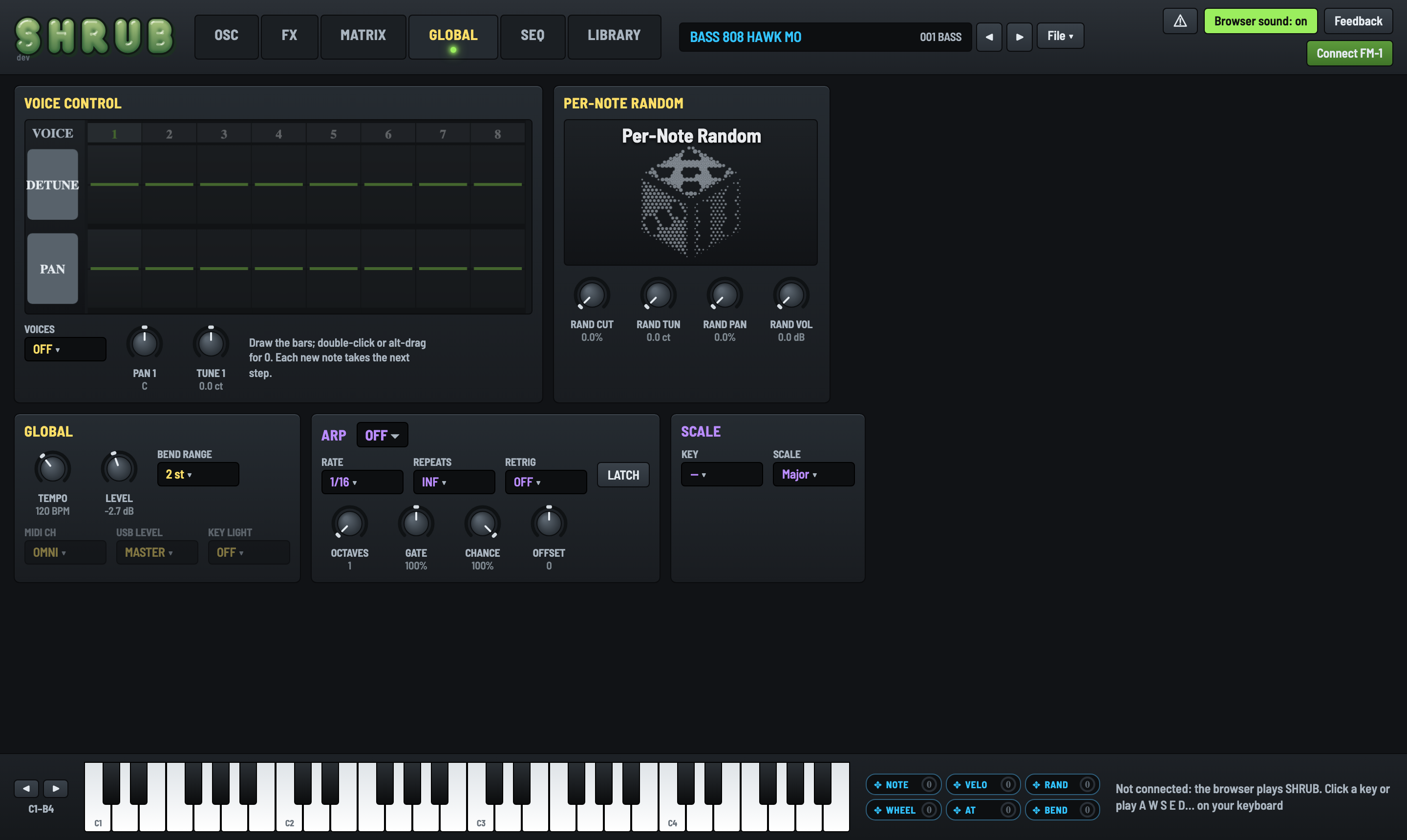
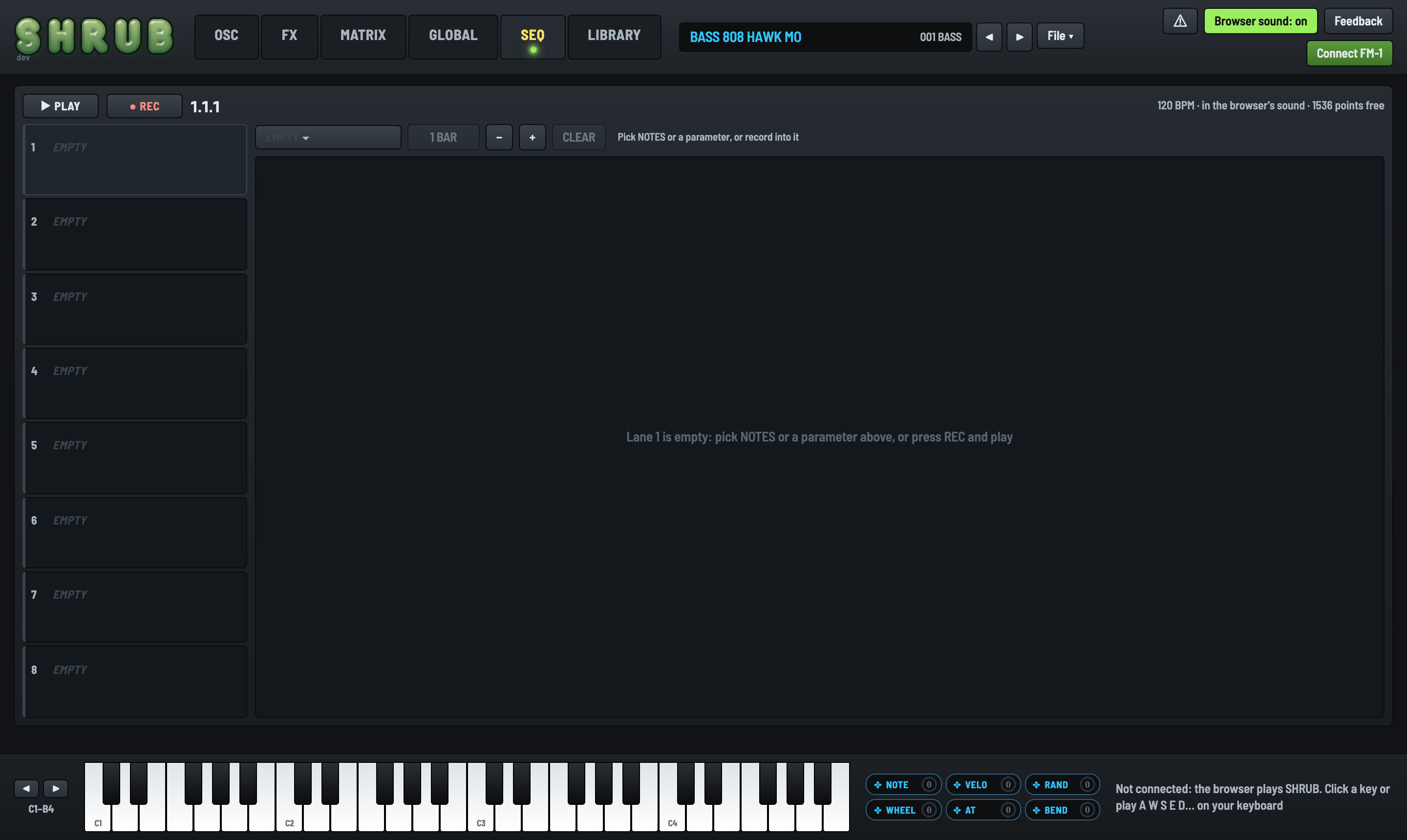
The arp (19 patterns, Serum 2's) and the scale (51 scales) are on the GLOBAL tab. The SEQ tab shows the eight lanes the FM-1 records: draw automation and notes, set each lane's length, and export a note lane as a MIDI file (EXPORT MIDI on its head).
SHRUB is Serum's DNA on a box with a fraction of a laptop's power. Most of it is the real thing; some of it had to be trimmed.
SHRUB reads Serum 1 presets (.fxp) and translates them as closely as it can.
After an import, the editor lists anything it couldn't carry over (a filter type, a table, an aux source). Read the list: it's usually one small thing, and now you know what to tweak.
Imported sounds play in the browser right away. To keep one, save it: to the FM-1 (File > Save to FM-1
User Presets), into a LIBRARY slot, or to disk as a .shrub. Its wavetables go along with it.
Made something on the FM-1 you want in your studio? File > Export to Serum2 (.SerumPreset) writes the sound as a Serum 2 preset, as close to how SHRUB plays it as Serum 2 can get. The wavetables go inside the preset.
What doesn't come across, and the editor tells you: the arp, the scale, voice control and per-note random. A few things sound a touch different: Serum 2 filters per voice, so chords through a resonant filter will sound fuller (the opposite of the one filter); some drive and comb filter settings and the noise and sub warps are a little different too.
Serum 2 presets can't be imported into SHRUB. Serum 1 presets can.
File > User Wavetables opens the tables dialog. Drop in WAV files and they become wavetables you can pick on either oscillator.
Not every table needs 64 frames. A table with 8 or 16 frames sounds the same if that's all its sweep needs, and saves a lot of room. When space gets tight, LIBRARY's Tidy Wavetables cleans out tables nothing uses.
The LIBRARY tab is a map of your FM-1's 128 preset slots, eight rows of sixteen, coloured by category.
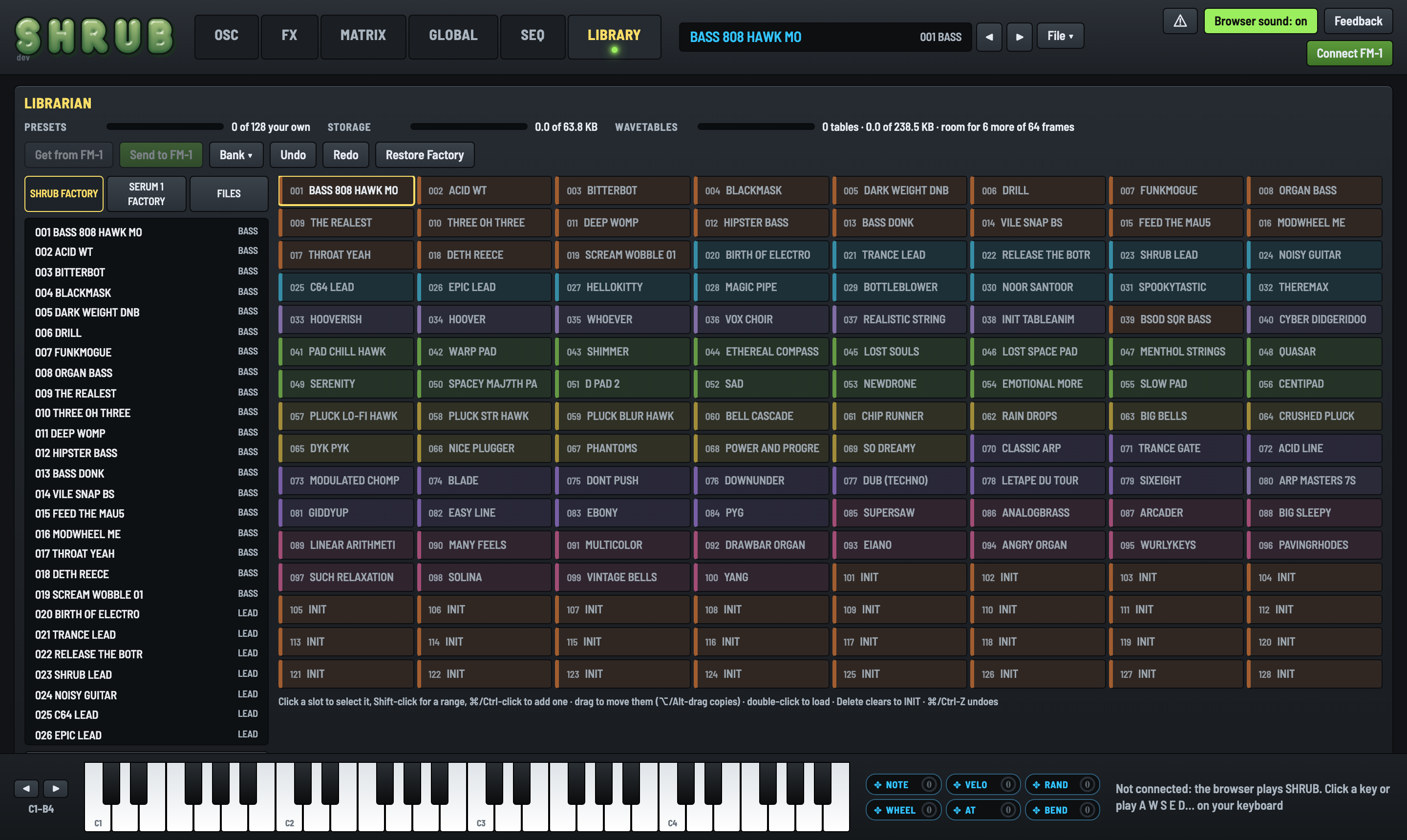
.fxp and .shrub).A bank is all 128 slots plus their wavetables (and the MIDI map) in one .shrubbank file. The Bank menu
loads the Default Shrub bank and the other factory banks, loads and saves your own, wipes the INIT slots, tidies the
wavetables, and sorts the slots by category.
Share your banks! A .shrubbank has everything a friend needs, wavetables included.
| File | What it is | Where |
|---|---|---|
| .shrub | One SHRUB sound, with its lanes | File > Save Patch to Disk / Open Patch |
| .shrubbank | All 128 slots, their wavetables and the MIDI map | LIBRARY > Bank |
| .shrubmidimap | Which CC turns which knob | File > Load / Save MIDI Map |
| .fxp | A Serum 1 preset (import only) | File > Open, LIBRARY |
| .SerumPreset | A Serum 2 preset (export only) | File > Export to Serum2 |
| .wav | A wavetable (import) | File > User Wavetables |
| .mid | A note lane as a MIDI file (export) | SEQ tab, a note lane's EXPORT MIDI |
| .fwsc | A firmware package | The installer |
Right-click any knob for MIDI Learn, then wiggle a controller. File > Save MIDI Map keeps your map as a file, Reset MIDI Map goes back to the factory map (Appendix C). Connected, the map is the FM-1's: it remembers it. In the VST3, Save MIDI Map as Default makes every new SHRUB start with it.
The same SHRUB in your DAW: the same engine, the same editor, the same presets.
Download the zip for your computer from shrub.audio, unzip it, and put
Shrub.vst3 in your VST3 folder:
| macOS | /Library/Audio/Plug-Ins/VST3 (or ~/Library/Audio/Plug-Ins/VST3 for just you) |
| Windows | C:\Program Files\Common Files\VST3 |
| Linux | ~/.vst3 |
Rescan plug-ins in your DAW and load Shrub as an instrument.
While it works as a free VST3 instrument, it isn't really designed as one, though I did spend some extra time so it would be a decent experience. It's 1:1 in sound with the firmware, and it isn't entirely performant: it may look light in your DAW, but Task Manager will tell another tale, because it runs the device's own code. That's on purpose: it's meant to be sound-compatible, and mostly to be an editor and librarian with the convenience of your DAW instead of a web page.
Xfer Records/Shrub/Serum 1 Presets in your application support folder).| Do this | And |
|---|---|
| ⌘/Ctrl-Z, ⌘/Ctrl-Shift-Z | Undo, redo (the sound and its lanes) |
| Computer keys A, W, S, E, D… | Play notes (Z and X shift the octave) |
| Drag a source onto a knob | Modulate it (next free matrix slot, +25%) |
| Alt-drag a modulated knob | Change the depth from the selected source |
| Right-click a knob | MIDI Learn |
| Alt-drag an LFO point | Snap it to the grid |
| Double-click an LFO line / point | Add / remove a point |
| Double-click a curve handle | Straighten the segment |
| Shift-drag in an LFO | Paint flat steps (pencil) |
| Alt-drag a LIBRARY slot | Copy it |
That's everything. Now go make some noise, and tell us what you make.
— Steve and everyone who
helped make SHRUB